Pine Script Explained: How Traders Use It to Build Custom Indicators and Strategies
Author : Ranga Technologies
Publish Date : 6 / 19 / 2026 • 7 mins read
Last Updated : 6 / 19 / 2026
Everyone Else Is Watching the Same Indicators. What Are You Watching?
Open TradingView right now. Add the RSI. Add the MACD. Add Bollinger Bands. Every one of those indicators is showing the same numbers to the same 100 million traders simultaneously. The signals they generate are visible to every participant in the market at exactly the same moment. When they fire, everyone sees it. When they fire on high volume, the trade is already crowded.
That's not a flaw in those indicators. They're good tools. But they're generic tools, calibrated for the average market condition, averaging signals across the average asset, designed for the average trader's approach.
What if your trading setup doesn't fit the average? What if you want a momentum indicator that incorporates volume weighting? A volatility band that adapts to the session you're trading? An EMA crossover that only fires when a higher timeframe trend is aligned? A dashboard that shows you four different market conditions simultaneously on one panel?
That's what Pine Script is for.
Pine Script is TradingView's programming language. It allows traders to create their own trading tools and run them on TradingView's servers. Designed as a lightweight but powerful language for developing indicators and strategies that can be backtested, most of TradingView's built-in indicators are written in Pine Script. TradingView's thriving community of Pine Script programmers has published more than 150,000 Community Scripts, half of which are open-source.
Everything you see on a TradingView chart, every line, histogram, signal marker, and strategy result, was generated by Pine Script code running on TradingView's cloud servers. Learning what Pine Script can do, and how to use it, is the difference between using TradingView as a chart viewer and using it as a strategy development platform.
This guide covers exactly that: what Pine Script is, what traders actually build with it, how v6 changed the game, what the real learning challenges are, and how AI tools like PineGen AI have made building custom indicators and strategies faster than ever.
1. What Is Pine Script, and What Makes It Different?
Pine Script is a domain-specific programming language, meaning it was purpose-built for one context and one context only: working with financial market data in real time inside TradingView.
Pine Script is cloud-based and therefore different from client-side programming languages. Unlike Python, JavaScript, or C++, Pine Script doesn't run on your machine, it runs on TradingView's servers, which is why you can write a script in TradingView's Pine editor and see it plotted on a live chart within seconds, with no installation, no environment setup, and no local dependencies.
The most fundamental thing that makes Pine Script different from general-purpose languages is how it handles data. Pine Script is series-based: almost every value isn't a single number, it's an entire sequence of historical values, one per bar. When you write close in Pine Script, you're not accessing the current closing price. You're accessing the entire history of closing prices as a time series. This makes calculations like "the average of the last 14 closing prices" as simple as ta.sma(close, 14), because the language was built around the concept that every variable is a sequence of historical values indexed by bar.
This execution model is genuinely different from most programming paradigms, and it's the primary source of confusion for developers who come to Pine Script with experience in other languages. Knowing this upfront makes everything else in the language click faster.
Pine Script was created by TradingView in 2011, addressing a specific need in the trading community: making algorithmic trading accessible to traders without extensive programming backgrounds. The language structure prioritises simplicity and readability while maintaining powerful capabilities for market analysis.
2. Why Pine Script Matters in 2026
The numbers tell the story directly. Most of TradingView's built-in indicators are written in Pine Script, and the community has published more than 150,000 Community Scripts. TradingView itself serves over 100 million traders across more than 200 million monthly visits, making it the most widely used charting platform on earth.
Everything on that platform that goes beyond the standard chart is Pine Script. Every custom indicator in the community library. Every backtestable strategy. Every alert condition is more sophisticated than a simple price cross. The entire layer of customisation that separates TradingView from a basic charting tool runs on Pine Script.
The TradingView Pine Script v6 release represents the most significant upgrade to TradingView's scripting language since Pine Script v4 introduced the modern syntax traders use today. TradingView has shipped twelve Pine Script updates between February 2025 and January 2026, each adding language features, data access improvements, and quality-of-life changes for script developers.
The platform isn't static. It's actively expanding what's possible. That means traders who understand Pine Script today are building on a foundation that gets more powerful every month.
3. What Traders Actually Build with Pine Script
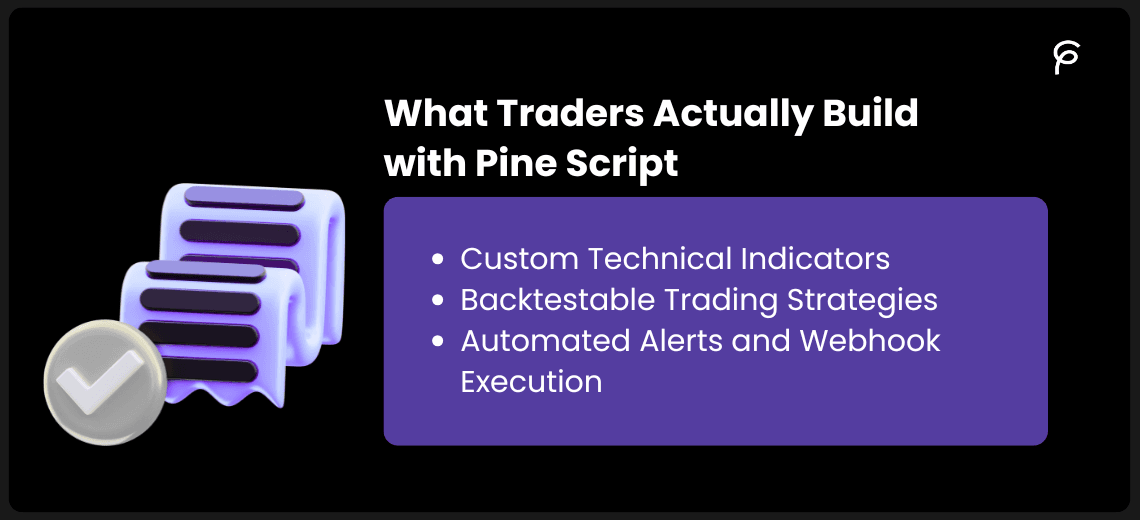
There are three distinct types of Pine Script tools, and understanding the difference between them shapes how you approach building anything.
3.1 Custom Technical Indicators
An indicator script uses the indicator() declaration and outputs visual data on your chart, lines, histograms, shapes, labels, background colours, table displays. It doesn't place trades or track positions; it calculates and displays.
This is where the creative power of Pine Script becomes most apparent. The built-in RSI uses a standard 14-period calculation with fixed overbought and oversold levels. A custom Pine Script indicator can combine RSI with volume weighting so that high-volume momentum signals carry more weight than low-volume ones. It can blend signals across multiple timeframes into a single oscillator. It can display the information as a colour-coded background rather than a separate panel, keeping your chart clean.
Real examples of what traders build: multi-timeframe momentum meters that show trend direction across 4 different timeframes simultaneously, volatility-adaptive bands that widen during high ATR periods and contract during consolidation, session-specific VWAP calculations that reset at the London open rather than the daily open, and composite confirmation indicators that combine EMA slope, RSI direction, and volume trend into a single buy/sell signal.
3.2 Backtestable Trading Strategies
A strategy script uses the strategy() declaration and includes strategy.entry() and strategy.exit() calls. This activates TradingView's Strategy Tester, a full backtesting engine that runs your logic against historical price data and produces a detailed performance report.
The Strategy Tester panel shows net profit and maximum drawdown, win rate and profit factor, the average trade duration, every individual trade plotted on the chart with entry and exit markers, and the equity curve. This turns an idea, "buy when RSI is oversold and EMA is rising", into a quantified result: this logic produces X% returns with Y% maximum drawdown across Z trades over the test period.
This is what makes systematic trading accessible to retail traders. Without Pine Script's backtesting capability, validating a strategy against real historical data required either professional software (expensive), a separate coding environment (complex), or manual chart analysis (time-consuming and unreliable). Pine Script builds it directly into the charting platform you're already using.
3.3 Automated Alerts and Webhook Execution
Pine Script's alertcondition() function attaches alert triggers to any script logic. When the defined conditions are met on a live chart, TradingView fires a notification, via email, SMS, push notification, or webhook.
Webhook integration is where Pine Script crosses from analysis tool to execution bridge. A webhook alert from TradingView can send a structured message to an external platform (like TradersPost, Autoview, or a custom API) that receives the signal and executes a real trade at a connected broker. With native Pine Script support, developers can now build custom volume profile indicators, delta divergence strategies, and imbalance detection systems entirely within TradingView. The combination of precise Pine Script logic and webhook execution means a trader can go from a strategy idea to a semi-automated or fully automated system without writing a single line of broker API code.
4. How Pine Script v6 Changed Everything
Pine Script has been evolving since its introduction in 2011. Version 1 (2013) introduced the language itself. Version 2 (2015) added if statements. Version 3 (2017) brought string support and more technical analysis functions. Version 4 (2019) was a landmark release that reorganised the language into namespaces, added while loops, switch statements, arrays, and user-defined types. Version 5 (2021) added libraries for code reuse, methods, matrices, and maps.
Pine Script v6 was released by TradingView in December 2024, and it represents a more significant architectural change than any previous version upgrade. The key changes that every Pine Script user needs to understand:
-
Booleans are now strictly true or false. In v5 and earlier, a boolean value could be
na(not a number, Pine Script's equivalent of null). This caused subtle logic bugs where conditions behaved unexpectedly when data was missing. In v6, booleans are strictly true or false. Scripts that relied onnabooleans need to be restructured. -
The
ta.prefix is now mandatory for all built-in functions. Functions likeema(),sma(),rsi(), andmacd()that worked without a prefix in older versions now requireta.ema(),ta.sma(),ta.rsi(), andta.macd(). This is the single most common reason AI-generated Pine Script fails to compile, general-purpose AI tools trained on pre-v6 content default to the old syntax constantly. -
Dynamic requests for multi-symbol and multi-timeframe data. In v5,
request.security()calls could only be made in the global scope of a script. V6 removes this restriction, allowing multi-timeframe data requests inside functions, loops, and conditional blocks. This unlocks significantly more sophisticated multi-timeframe strategy architectures. -
strategy.exit()now correctly evaluates both absolute and relative exit parameters. Previously, when both a fixed-price limit and a percentage-based profit target were specified, the fixed-price parameter always won. V6 evaluates both and uses whichever would be reached first, which is the correct behaviour for realistic backtesting. -
Unlimited local scopes. V5 limited scripts to 550 total scopes (global scope plus all local scopes inside functions, loops, and conditional structures). V6 removes this limit entirely, enabling significantly more complex scripting architectures.
The v6 community is rapidly adopting the new version, which means new tutorials, examples, and shared scripts will increasingly use v6 syntax. Starting with or upgrading to v6 now puts you in line with the direction the entire Pine Script ecosystem is moving.
If you're building any Pine Script today, whether manually or through PineGen AI, v6 is the only version that matters. All new features from this point onward will be implemented exclusively in the latest Pine version.
5. The Real Learning Curve: Where Traders Actually Get Stuck
Pine Script is genuinely more approachable than most programming languages. But "easier than Python" doesn't mean "easy", and being honest about where traders get stuck helps you navigate the friction faster.
The series-based execution model is the first genuine conceptual hurdle. Most logic in most languages works on single values. In Pine Script, every variable is a time series. close isn't today's price, it's the entire history of closing prices. close[1] is yesterday's closing price. close[5] is five bars ago. Understanding this distinction is what makes the difference between Pine Script logic that works correctly and logic that runs without errors but produces wrong results.
The na value behaviour is the second common confusion point. Pine Script uses na to represent missing or undefined data, for example, the EMA of a 200-period moving average can't produce valid output until 200 bars of data exist. Until then, the value is na. If you use na values in comparisons without handling them explicitly, your strategy fires entries at the wrong times or produces backtest results that don't reflect real trading conditions.
Conditional scope restrictions caught many v4/v5 developers off guard and still trip up newer Pine Script users. Certain functions, particularly request.security() calls in older versions, can't be used inside conditional blocks (if, for). Attempting to do so produces an error that isn't always self-explanatory.
Version compatibility is the fourth point of friction. Scripts written for v3 or v4 often don't compile in v6 without modification. The ta. namespace changes alone affect virtually every indicator calculation ever written in older versions. This is why copying scripts from forums written before December 2024 frequently produces immediate compile errors, they're written in an older version.
None of these hurdles are insurmountable. But they're real, and they account for the majority of the debugging time that traders spend when learning Pine Script manually.
6. What Good Pine Script Actually Looks Like
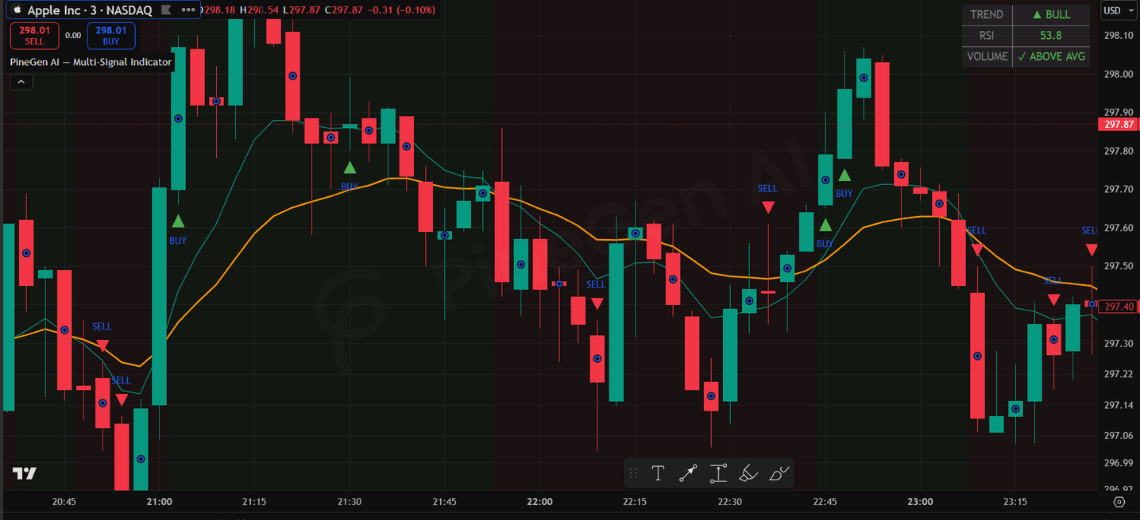
Before showing the code, context matters. This is a custom indicator, using indicator() rather than strategy(), which means it outputs visual data on the chart rather than placing simulated trades. It demonstrates the four things Pine Script indicators are best at: calculating values across historical bars, visualising those values clearly, combining multiple signals into one coherent display, and firing alerts when conditions are met.
The prompt that built this in PineGen AI:
"Pine Script v6 custom indicator. Show a buy signal when: 9 EMA is above 21 EMA AND RSI(14) is rising and above 50 AND volume is above the 20-bar average. Show a sell signal when: 9 EMA is below 21 EMA AND RSI(14) is falling and below 50 AND volume confirms. Plot both EMAs on the chart. Add a small info panel showing current RSI value and trend direction. Add signal arrows, green triangles below bars for buy, red triangles above for sell. Add alert conditions for both signals."
pinescript//@version=6
indicator("PineGen AI — Multi-Signal Indicator", overlay=true)

// ── INPUTS ─────────────────────────────────────────────
ema9Len   = input.int(9,   "Fast EMA",         group="EMAs")
ema21Len  = input.int(21,  "Slow EMA",         group="EMAs")
rsiLen    = input.int(14,  "RSI Length",       group="RSI")
rsiMid    = input.int(50,  "RSI Midline",      group="RSI")
volLen    = input.int(20,  "Volume MA Length", group="Volume")

// ── INDICATORS ─────────────────────────────────────────
ema9     = ta.ema(close, ema9Len)
ema21    = ta.ema(close, ema21Len)
rsiVal   = ta.rsi(close, rsiLen)
rsiUp    = rsiVal > rsiVal[1]           // RSI is rising
rsiDown  = rsiVal  ta.sma(volume, volLen)

// ── SIGNAL CONDITIONS ──────────────────────────────────
// Buy  : fast EMA above slow EMA + RSI rising above midline + volume confirms
// Sell : fast EMA below slow EMA + RSI falling below midline + volume confirms
buySignal  = ema9 > ema21 and rsiVal > rsiMid and rsiUp  and volPass
sellSignal = ema9  ema21 ? color.new(color.green, 95) : color.new(color.red, 95),
     title="Trend Background")

// ── INFO PANEL ─────────────────────────────────────────
// Displays current RSI value and trend status in a table on the chart
var table infoPanel = table.new(position.top_right, 2, 3,
     border_width=1, border_color=color.gray,
     bgcolor=color.new(color.black, 80))

if barstate.islast
    trendLabel = ema9 > ema21 ? "▲ BULL"   : "▼ BEAR"
    trendColor = ema9 > ema21 ? color.green : color.red
    rsiLabel   = rsiVal > rsiMid  ? "ABOVE 50" : "BELOW 50"
    rsiColor   = rsiVal > rsiMid  ? color.green : color.red

    table.cell(infoPanel, 0, 0, "TREND",   text_color=color.gray,  bgcolor=color.new(color.black, 85))
    table.cell(infoPanel, 1, 0, trendLabel,text_color=trendColor,  bgcolor=color.new(color.black, 85))
    table.cell(infoPanel, 0, 1, "RSI",     text_color=color.gray,  bgcolor=color.new(color.black, 85))
    table.cell(infoPanel, 1, 1, str.tostring(math.round(rsiVal, 1)),
         text_color=rsiColor, bgcolor=color.new(color.black, 85))
    table.cell(infoPanel, 0, 2, "VOLUME",  text_color=color.gray,  bgcolor=color.new(color.black, 85))
    table.cell(infoPanel, 1, 2, volPass ? "✓ ABOVE AVG" : "✗ BELOW AVG",
         text_color=volPass ? color.green : color.gray,
         bgcolor=color.new(color.black, 85))

// ── ALERTS ─────────────────────────────────────────────
alertcondition(buySignal,  "Buy Signal",  "PineGen AI ▲ BUY  Signal — {{ticker}} @ {{close}}")
alertcondition(sellSignal, "Sell Signal", "PineGen AI ▼ SELL Signal — {{ticker}} @ {{close}}")
Notice what this script demonstrates that a built-in indicator can't do. The buy signal requires three conditions to be true simultaneously, EMA alignment, RSI momentum direction, and volume confirmation, on every bar. The info panel in the top right corner shows the current state of all three filters in real time, so you know at a glance whether the market context is favourable without running through each indicator individually. The background colour gives an immediate visual read on the broader trend regime. And the alert conditions mean this indicator can notify you the moment all three conditions align, on any asset, any timeframe, without you watching the screen.
This is exactly the type of custom tool that separates traders who use TradingView from traders who use TradingView well.
7. The Practical Workflow: From Idea to Deployed Script
Whether you're writing Pine Script manually or using PineGen AI to generate it, the workflow follows the same logical path.
7.1 Define Your Idea Precisely First
The more clearly you can articulate what you want the indicator or strategy to do, what conditions trigger a signal, what the signal should look like visually, what timeframe it operates on, the faster the development process moves.
Vague ideas produce vague scripts.
"Show me when momentum is strong" needs to become "show a signal when RSI(14) is above 60 and rising, and the 50 EMA is above the 200 EMA, and volume on the current bar exceeds the 20-bar average."
7.2 Generate or Write the Base Script
If you're using PineGen AI, take that precise description and prompt it directly, including the version (Pine Script v6), the script type (indicator() or strategy()), all indicator settings, the signal conditions, the visual requirements, and any alerts.
If you're writing manually, start with the indicator() or strategy() declaration, then build each section incrementally:
-
inputs
-
indicator calculations
-
conditions
-
plots
-
alerts
7.3 Paste into TradingView's Pine Editor
The Pine Editor is accessible from the bottom panel of any TradingView chart (or the side panel in the new v6 layout).
Paste your script, click "Add to chart," and the indicator loads immediately.
If there are compile errors, they appear at the bottom of the editor with line numbers and descriptions.
7.4 Review Visually on the Chart
Before running any backtest, spend time looking at where the signals are plotted.
Do buy signals appear in conditions that match your intent?
Do the EMA lines show what you expected?
Does the volume filter seem to be removing low-quality signals?
Visual review catches logical errors that backtesting might miss, for example, if signals are firing on the wrong side of the chart, or if the info panel is showing values that don't match what you see in the indicator.
7.5 Backtest if It's a Strategy
Open the Strategy Tester tab at the bottom of TradingView.
The performance summary shows:
-
net profit
-
max drawdown
-
win rate
-
profit factor
-
the full trade list
Evaluate these metrics honestly, a win rate of 90% on 5 trades tells you almost nothing. A win rate of 52% with a profit factor of 1.4 across 200 trades tells you something meaningful.
7.6 Set Your Alerts
Once you're satisfied with the logic, right-click on the chart and create an alert.
Under "Condition," select your script's name and the specific alertcondition you want to trigger.
Configure the notification method (push, email, webhook) and you're live, the indicator will notify you any time conditions are met on that symbol and timeframe.
7.7 Iterate
The first version is almost never the final version. Change one thing at a time, document what changed and why, and compare backtest results systematically. Prompting tips for effective iteration covers this in detail, but the core principle is that each modification should be deliberate and testable, not a shotgun adjustment of multiple parameters simultaneously.
8. Why PineGen AI Is the Fastest Path to Working Pine Script
The learning curve for Pine Script is real, but it isn't what stops most traders from building the tools they want.
What stops them is time.
Learning Pine Script well enough to build a multi-condition indicator with an info panel, proper alert conditions, and v6-compliant syntax takes weeks of practice. Most traders don't have weeks, they have an idea right now, and they want to test it today. PineGen AI was built specifically for this.
Describe your indicator or strategy in plain English. The platform, trained on thousands of verified TradingView scripts and generated exclusively in Pine Script v6, produces validated, compilable code ready to paste into the Pine Editor. The distinction between a purpose-built tool and a general AI matters here. Most traders who try to generate Pine Script with a general-purpose chatbot like ChatGPT or Gemini hit the same wall:
-
the code looks convincing but it isn't reliably usable
-
it might not compile
-
it might compile and behave incorrectly
In a published benchmark of 20 active traders, ChatGPT required manual fixes in 70% of Pine Script cases.
PineGen AI produced zero compile errors in the same test. The gap exists for a specific technical reason: General AI tools were trained on a broad internet corpus heavily weighted toward pre-v6 Pine Script code. Every time a general AI generates ema(close, 9) instead of ta.ema(close, 9), that's the training data talking. PineGen AI generates exclusively in v6, validates every output before delivery, and understands the execution model well enough to generate trading-context-aware logic, not just syntactically correct code.
For traders who want to learn Pine Script progressively, PineGen AI also serves as a learning accelerator. Use the Code Explanation feature to understand what every generated line does. Study the structure of validated, working code as the foundation for your own understanding. This approach, learning from working examples of your own ideas, is significantly faster than learning from documentation before you can produce anything useful.
Whether your goal is a simple signal indicator, a complex multi-timeframe strategy, a VWAP-anchored session tool, or an automated system connected to webhook execution:
-
describe it
-
generate it
-
test it
-
iterate
9. Conclusion: Your Chart, Your Rules
Pine Script is TradingView's answer to one of trading's oldest problems:
The tools that exist are the tools everyone else is using. The edge in any market is never in the most popular indicator, it's in the combination of analysis, context, and timing that fits your specific approach to a specific market. Pine Script is designed with the explicit goal of keeping it accessible and easy to understand for the broadest possible audience.
A community of 100 million traders and 150,000 published scripts demonstrates that the goal is being achieved. But knowing what Pine Script can do and having the time to learn it well enough to build exactly what you want are two different things.
PineGen AI closes that gap. Describe the indicator or strategy you want, in plain English, in as much or as little detail as you have right now, and get validated Pine Script v6 code that's ready to paste, test, and iterate. The live chart preview shows you whether the logic looks right before you commit to a full backtest. The chat-based refinement lets you add conditions, change parameters, and improve the script without starting over. The tools that make TradingView powerful, custom indicators, backtestable strategies, alert-connected automation, are no longer limited to traders who also know how to code.
They're available to anyone who can describe what they want.
Build Your First Custom Pine Script Tool Today
-
Describe what you want your chart to show.
-
Get validated Pine Script v6.
-
See it on a live chart.
-
No coding required.
-
No compile errors.
-
No version compatibility issues.